> For the complete documentation index, see [llms.txt](https://docs.hivel.ai/llms.txt). Markdown versions of documentation pages are available by appending `.md` to page URLs; this page is available as [Markdown](https://docs.hivel.ai/integrations/ai-tools/claude-integrations/claude-console.md).

# Claude Console

### **Prerequisites**

You need an Admin account in Claude to create an Admin API key (starts with `sk-ant-admin...`).

### **In Claude.ai, Create Admin API Key:**

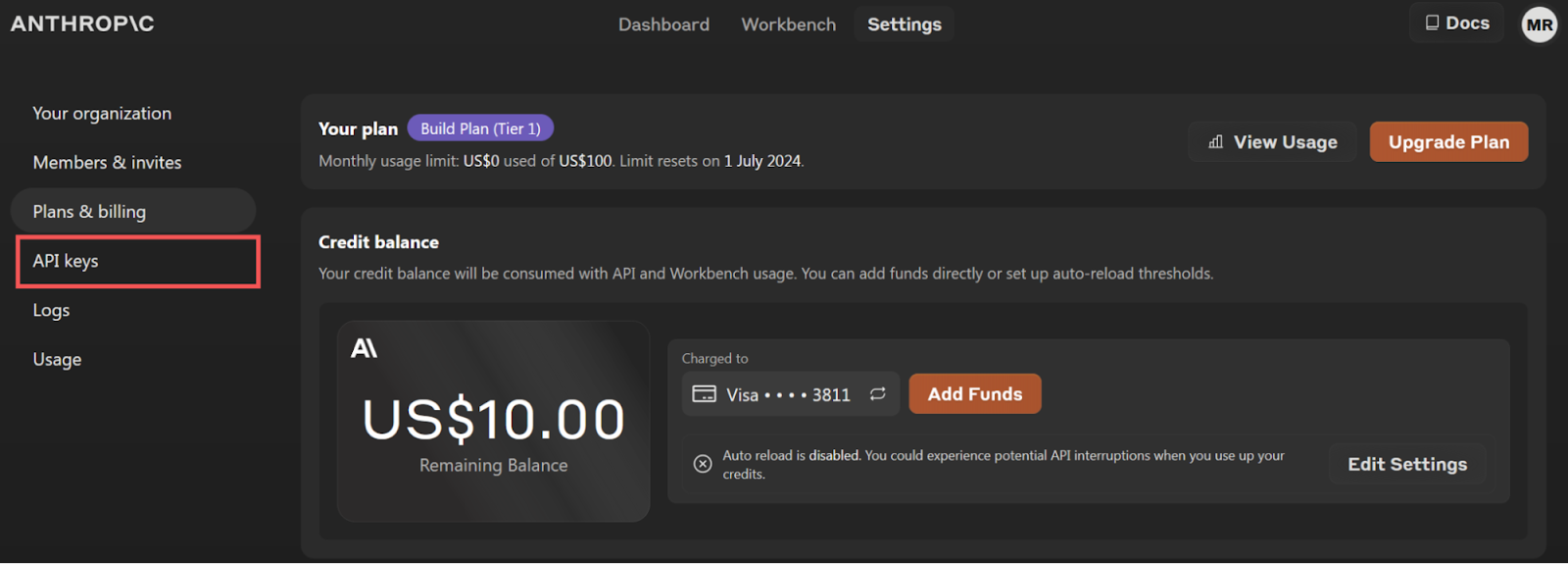
1. Go to **Settings** → **API keys** (left-side menu).

<figure><img src="https://3057781534-files.gitbook.io/~/files/v0/b/gitbook-x-prod.appspot.com/o/spaces%2F5KAIOUWph0JLSgQqbzyT%2Fuploads%2FOqLz5rCFW8fKbDl9gnXW%2Funknown.png?alt=media&amp;token=c3c8f214-bb1f-4f60-84a6-9dae01b58c26" alt="" width="563"><figcaption></figcaption></figure>

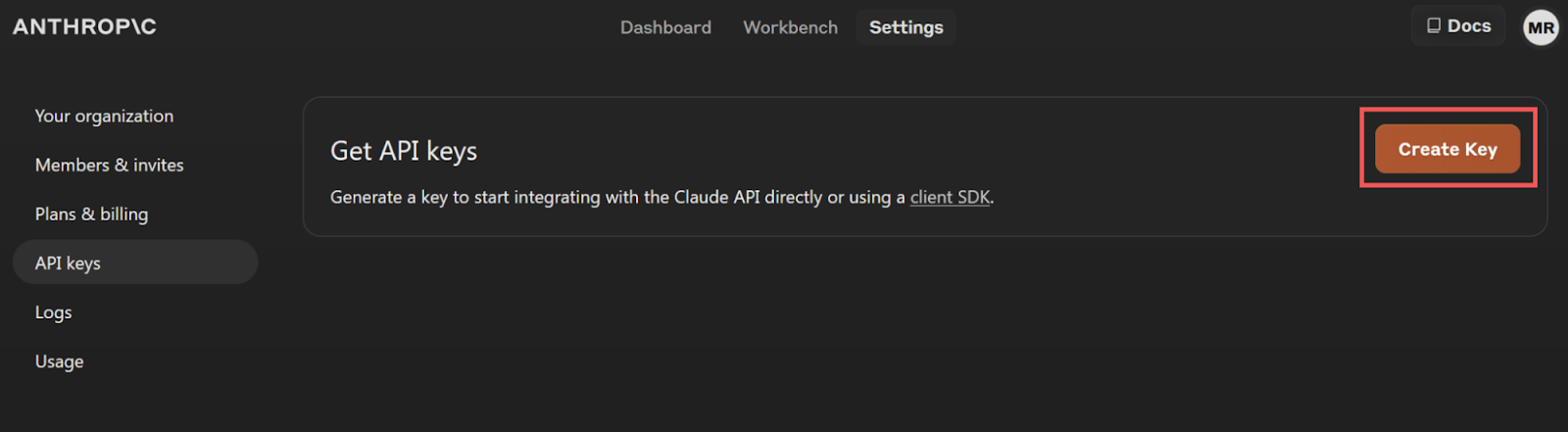
2. Click **Create Key**.

<figure><img src="https://3057781534-files.gitbook.io/~/files/v0/b/gitbook-x-prod.appspot.com/o/spaces%2F5KAIOUWph0JLSgQqbzyT%2Fuploads%2Ft3YmgUexgerjwKM72udu%2Funknown.png?alt=media&amp;token=c4bb9fd8-41aa-4b69-8583-cfcf6fd186b1" alt=""><figcaption></figcaption></figure>

3. Name it "Hivel" and click **Create Key**.
4. Copy the API key (starts with `sk-ant-admin...`).

### **In Hivel, Connect Claude Console:**

1. Log in to your Hivel account.
2. In the left sidebar, click **Settings** → **Integrations** tab.
3. Find the **Claude Console** card and click **Connect**.

<figure><img src="https://3057781534-files.gitbook.io/~/files/v0/b/gitbook-x-prod.appspot.com/o/spaces%2F5KAIOUWph0JLSgQqbzyT%2Fuploads%2FTdvle1wHA7BpJ1JoLB10%2FScreenshot%202026-08-19%20at%205.04.52%E2%80%AFAM.png?alt=media&amp;token=cd1e8f48-13ee-46d9-a4a9-fce3f29ad7d9" alt=""><figcaption></figcaption></figure>

4. Paste the API key and click **Submit**.

<figure><img src="https://3057781534-files.gitbook.io/~/files/v0/b/gitbook-x-prod.appspot.com/o/spaces%2F5KAIOUWph0JLSgQqbzyT%2Fuploads%2FrW2RWM6L2ScBT5Aygsbm%2FScreenshot%202026-08-19%20at%205.06.08%E2%80%AFAM.png?alt=media&amp;token=f35bde6f-38c9-427b-b9ae-0d0167d1e711" alt=""><figcaption></figcaption></figure>

\
**Continue setting up your integrations**

Now that Claude is connected, connect the rest of your cloud tools to complete your setup.

#### **To continue setting up your integrations →** [Back to Integrations](/integrations.md)