> For the complete documentation index, see [llms.txt](https://docs.hivel.ai/llms.txt). Markdown versions of documentation pages are available by appending `.md` to page URLs; this page is available as [Markdown](https://docs.hivel.ai/using-hivel/alerts-in-hivel.md).
# Alerts in Hivel
Alerts let you know when important engineering metrics cross the thresholds you care about, so you don’t have to constantly check dashboards.
## Why Alerts Matter
### For Executives (CTO, VP of Engineering)
* Get signals when org-wide delivery metrics move out of healthy ranges (like Cycle Time, MTTR, Release Merge Frequency, Change Failure Rate, etc.)
* Stay ahead of reliability issues without digging across dashboards
* Keep a steady pulse on team performance across the org
### For Engineering Managers/Team Leads
* Catch slowdowns early (for example: Cycle Time > 5 days)
* Monitor team-wide patterns before sprint planning or reviews
* Maintain alignment with expectations and avoid last-minute surprises
### For Developers
* Get nudges when your PRs wait too long for review
* Monitor personal patterns like coding time, review time, or PR activity
* Stay aware of your own trends without manually checking dashboards
## Alert Types (Scopes)
Hivel supports three alert scopes. Each scope controls what the alert monitors:
### 1. Organization-Level Alerts
* Watch metrics across the entire org
* Great for executives or central engineering operations
* Only admins / execs with “complete data visibility” can configure them
### 2. Team-Level Alerts
* Monitor metrics for a single team
* Ideal for managers responsible for specific groups
### 3. Personal Alerts
* Users can set alerts for themselves or any other individual, on teams they choose
* Great for PR reminders or personal productivity patterns
## Available Alert Metrics
Hivel supports alerts for the following metrics across your organization, teams, and personal workflows:
* **Delivery & Cycle Metrics -** Cycle Time, Coding Time, Review Time, Merge Time, Release Merge Frequency
* **Pull Request Metrics -** PRs Size, Number of PRs Opened, PRs Waiting for Review, PRs Waiting for Merge, PRs Merged
* **Code Quality & Patterns -** Commit Frequency, Flashy Reviews, PRs Merged Without Review
* **Hotfix & Reliability -** Hotfix Resolution Time, Hotfix Rate
* **Team Activity & Progress -** Active Days, Completed Story Points, Closed Work Items Count
## Before You Start - Permissions
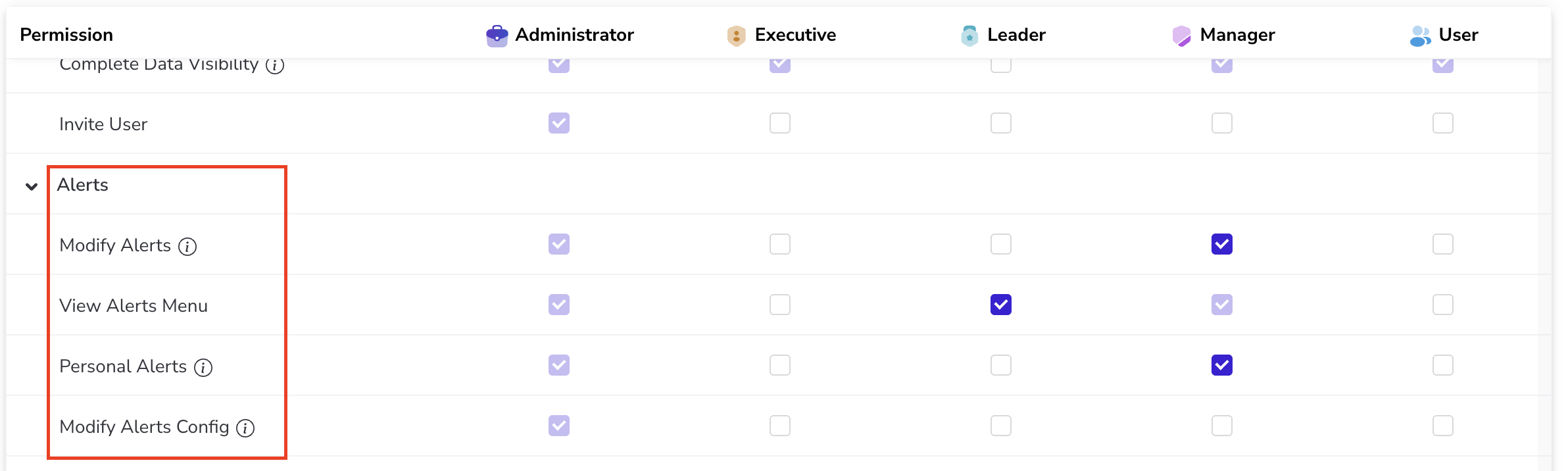
Make sure your role is assigned the correct permissions in the [Access Management](https://app.hivel.ai/settings/rbac) screen:
* **Modify Alerts** – Create/edit/delete alerts (Org & Team level)
* **View Alerts Menu** – Access the alert dashboard
* **Modify Alerts Config** – Configure Slack channels & digests (Org & Team level only)
* **Personal Alerts** – Create/edit personal alerts regardless of access to above permissions
## How to Set Up an Alert (Step-by-Step)
Navigate to **Alerts** under **Overview**, choose the scope you want, and click on "New Alert".
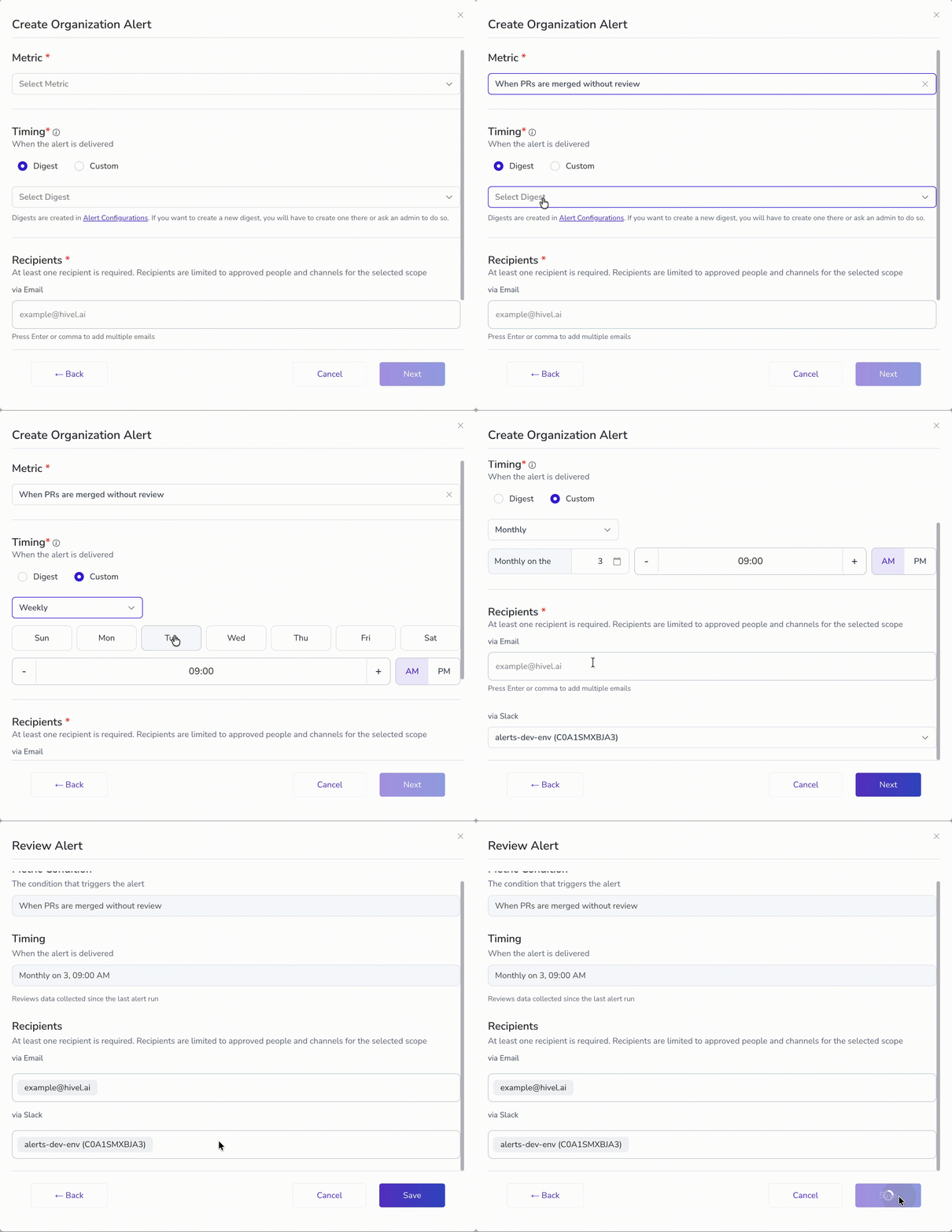
Here is a short walkthrough of the Alerts setup process:
#### 1. Choose your metric & set the threshold
Note:
* A metric can only have one alert per scope\
*(Example: only one Cycle Time alert allowed at the org level)*
* Metrics already used at that level won’t appear in the dropdown
#### 2. Choose when the alert should fire
Hivel uses time-window averages, not real-time checks, to avoid spam.
You can either:
* Use an existing Digest schedule
* Or set a Custom schedule for just this alert (daily, weekly, or monthly)
> Note: If you choose a date above 28 for a monthly alert, the system will warn you that alerts won’t fire for the months that don’t have those dates.
#### 3. Select recipients
You can send alerts to:
* Slack
* Email
* Or both
> **Note:** For Slack, make sure you've integrated it with Hivel and set up the Slack channels ([details in this guide](https://docs.hivel.ai/using-hivel/alerts-in-hivel/setting-up-slack-to-receive-hivel-alerts)).
#### 4. Review & save
Review the Alert settings and click Save. Your alert will now appear in the Alerts table.
### When your Alert Fires
When a metric crosses your threshold, you'll receive a notification in your chosen channel (Email or Slack).
**What You'll See**
Each alert notification includes:
* **Alert Summary** – A clear, description of what triggered the alert (e.g., "Merge Time exceeded 3 days" or "5 PRs merged without review")
* **Metric Details** – The specific values that crossed your threshold, providing immediate context
* **"View in Hivel" Button** – A direct link to investigate further in the platform - Depending on the alert type, you'll land on either the Cockpit or PR page with data pre-filtered so you can investigate immediately.
**Taking Action**
Click the "View in Hivel" button to jump directly to the relevant data without digging through dashboards. Depending on the alert type, you'll land on:
* **Cockpit Page** – For org, team, or personal-level delivery and cycle metrics (Cycle Time, Merge Time, Review Time, etc.)
* **PR Page** – For pull request metrics (PRs Waiting for Review, PRs Merged Without Review, etc.)
The data is pre-filtered to show exactly what triggered the alert, so you can investigate the root cause immediately and take corrective action.
**Scope & Coverage**
This experience works across all 18 alerts at the Organization, Team, and Personal levels, and is supported in both Email and Slack notifications. Whether you're reviewing alerts in your inbox or in Slack, you get the same contextual details and navigation shortcut.
### Creating a Digest (Optional)
Digests help you group multiple alerts into a single scheduled summary to avoid notification overload.
To create one:
1. Go to Alerts → Settings ⚙️ icon → Digests
2. Create a digest with a name, timing, recipients, and Slack channel or emails.
3. Assign alerts to this digest during alert creation.
{% hint style="info" %}
**Note:** If a digest does not have any email recipients configured, you will not be able to add email addresses during alert creation. In this case, update the email recipients in the digest configuration first, and then proceed to create the alert.
{% endhint %}
## How Hivel Manages Alerts Behind the Scenes
* Only one alert per metric per scope is allowed.
* Each scope (Org, Team, Personal) can have its own Slack channel.
* If a digest is deleted, all linked alerts automatically switch to custom schedules using the digest’s original timing.
* If a Slack channel is deleted, alerts using only Slack are disabled until a new channel is added.
* If a team in an alert is deleted, the alert becomes inactive until updated.
## Need Help?
If you’re unable to see Alert options or need assistance setting things up, reach us at .